
 Chirply
Check plan access and provider connections
Use the workspace you intend to configure. You need a plan with AI phone agents, a working Twilio connection and an OpenRouter connection in Settings → Integrations. Number management is for owners and administrators. If an agency manages your workspace or provider accounts, confirm that arrangement before replacing a connection.
The Twilio setup guide covers credentials, number ownership, browser-phone readiness and provider test restrictions. Connect the providers first; saving an agent does not connect a phone number.
Grow $77/month
- 1 AI phone agent
- Brain knowledge and document upload included
- Streaming voice not included
- Website crawling not included
- Outbound AI calls and Call me tests not included
Scale $97/month
- Unlimited AI phone agents
- Brain knowledge and document upload included
- Streaming voice available to enable
- Website crawling included
- Outbound AI calls, including Call me tests
These are current monthly subscription prices from the plan catalog. Twilio numbers, calls, optional streaming voice and model usage are separate provider costs. Streaming must be available and enabled for the individual agent. Check current provider rates and your connection settings before estimating the cost of a call.
Configure the AI receptionist around one job
Create and name the agent
Open AI → AI Agents, choose New agent, enter a name and optional description, then choose Create agent. In Identity, check the active status, language and model. In Persona & goals, write the greeting, role and instructions for the calls it should handle.
For a first setup, choose a specific job such as answering service questions and taking a callback message. Say what the agent should do when the answer is unknown or a caller needs someone on the team.
Add knowledge, then choose its scope
Open Knowledge Brain and add current services, hours, service area, prices and escalation instructions. Typed items need no extraction provider. Document uploads and website crawling require the relevant plan access and a connected extraction provider.
Return to the agent's Knowledge card. Choose Entire brain or Selected topics; None supplies no Brain items. Keep the selected knowledge concise and remove conflicting facts. A live call uses a bounded amount of knowledge, so importing your entire website does not guarantee every page is available in every answer.
Pick the voice and test the full conversation
Choose a voice and language suited to your callers. Check the separate streaming voice option if your plan and the platform make it available. Some voice choices need their own provider connection or fall back to another voice. A short voice preview checks the sound; the live test checks knowledge, tools and turn-taking together.
Enable only the actions this role needs
In What this agent can do, set contact capture, message-taking, Transfers and the action checkboxes. Transfers can be disabled, forwarded to a number or sent to your online team. Enter and test the intended destination.
- Capture a message or contact detail
- Enable contact capture and message-taking as needed. A message becomes a task for your team; it does not itself send an email or text.
- Hand a caller to a person
- Choose a transfer number or the online team in the agent's settings. Test what happens if that destination cannot answer; a human handoff depends on that setup and availability.
- Book an eligible appointment
- Enable Find open appointment times and Book appointments, prepare an active event type and collect the caller's email or phone. The agent should confirm the chosen time before booking. Confirmations and appointment automations can run.
- Handle a booking that requires payment
- An appointment that requires payment cannot be completed by the booking tool during the call. Use its booking link instead. Sending that link requires the appropriate messaging permission and provider connection.
Prepare your booking event type and availability before testing appointment tools. A custom external-system lookup needs a separately configured, published API tool assigned to the agent; adding a website to the Brain does not create a live integration.
Save all settings together
Choose Save agent in the sticky bar. It saves the full settings form. Save edits before testing them so the test uses the version you meant to check.
Test the behavior and inspect the resulting records
In the Live test studio, choose Start web call to speak through your computer. No phone number is dialed by that test. The agent must be active, OpenRouter connected and the browser phone ready; allow microphone access and finish any other browser call first.
The separate Call me control places a real call to the number you enter and requires outbound AI-call plan access. Use a number you control and have agreed to use for testing. Both test paths run the actual configured agent. They are not a sandbox: provider charges can apply, and enabled tools can change records, send confirmations or start automations. Choose controlled test contacts and event types before enabling those actions.
A web test starts without a caller ID or linked contact. To verify caller recognition and contact-dependent booking, use a controlled inbound call from your test contact's number after setting up the route, or a Call me test where your plan allows it. Do not treat a missing caller record in the web studio as proof that inbound contact recognition is broken.
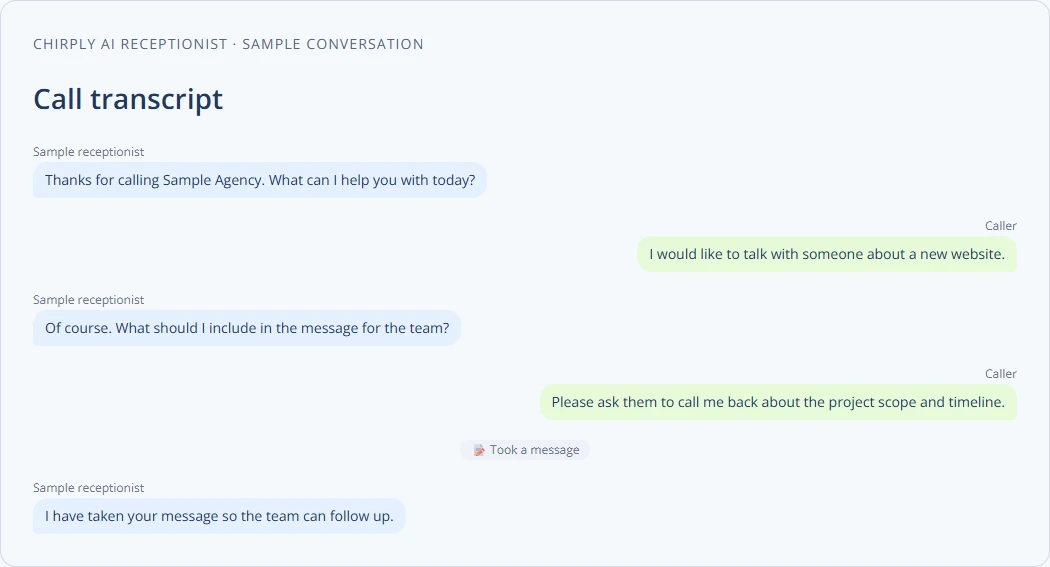
The sample transcript above illustrates the interface. For your test, inspect both the conversation and the actual task, appointment or call result it refers to.
- A question the Brain covers
- Try: Ask about a service, opening time or policy you deliberately added.
Check: Compare the spoken answer and transcript with the current knowledge item. Correct conflicting or stale facts before using the line. - A question outside its knowledge
- Try: Ask for a price or service you have not supplied.
Check: Check that it acknowledges the gap and offers the follow-up you configured. An instruction to avoid guessing still needs testing. - A request for a human
- Try: Ask to speak to the team, then separately test when that destination cannot answer.
Check: Verify the intended transfer and fallback. A transcript saying it will transfer is not proof that someone received the call. - A message for the team
- Try: Leave a short test message and callback detail with message-taking enabled.
Check: Open the resulting task and contact record. Check the details, not just the agent's spoken acknowledgement. - An eligible appointment
- Try: Use a controlled event type and test contact. Ask for availability, choose an open time and explicitly confirm it.
Check: Inspect the actual appointment and any confirmations or automation activity. Enabled tools act on real records, including during a test. - An appointment that requires payment
- Try: Ask to book an event type with a required payment.
Check: Check that it offers the booking-link route instead of claiming a completed paid booking. Verify the link before sharing it with customers.
Keep a short record of the scenario, observed result and setting you changed. Repeat the affected scenario after an edit. A pleasant conversation alone does not prove that a transfer or booking completed.
Choose which incoming calls reach the agent
Open Phone → Numbers and select the intended number. In Inbound routing, set Send incoming calls to to AI receptionist answers, choose the agent, then Save. Review the number's existing routing before changing a working business line.
To let the team answer first, choose team ringing and use the If nobody answers settings: select the ring count, choose the AI fallback and pick the agent. This is an unanswered-call fallback; it does not itself create an after-hours schedule. Test the answering and unanswered paths separately.
Make a controlled inbound call to the number after saving. Confirm that the intended agent answers and that a request for a person follows the route you configured. This final check tests the business number as well as the agent settings.
Check the specific part that failed
- Start web call is disabled
- Activate and save the agent. Check the OpenRouter connection and browser-phone setup on the Twilio connection. Finish any other browser call first, and allow microphone access when the browser asks.
- The voice pauses or differs from the preview
- Check the saved voice and model, the agent's streaming setting and plan access, and whether a fallback voice is being used. Providers, connection quality, tool lookups and the amount of supplied knowledge can affect response time. A voice preview alone does not test the full call.
- The answer uses the wrong business information
- Open the agent's Knowledge scope, then review the selected Brain items and Persona & goals. Remove conflicting prices or policies and shorten irrelevant material. Test the specific question again; uploading more documents is not always the fix.
- It offers to transfer but nobody receives the call
- Check Transfers on the agent, the destination number or online team, and the route on the business number. Test an unavailable recipient as well as an answered transfer. Review the actual call result, not just the agent's promise.
- It discusses an appointment but nothing is booked
- Check the availability and booking permissions, active event type, open slot and saved caller email or phone. Review the tool result and appointment list. A request saved as a message is only a task, and an event requiring payment uses its booking link.
Start with a role you can verify
Configure one agent, save it, and work through the test scenarios that matter for your business. Add more actions after their inputs, permissions and results are clear.
Product and provider references
Reviewed against Chirply's AI-agent settings, number-routing controls and booking behavior on September 7, 2026. Provider documentation explains the optional streaming service and current calling charges: