Chirply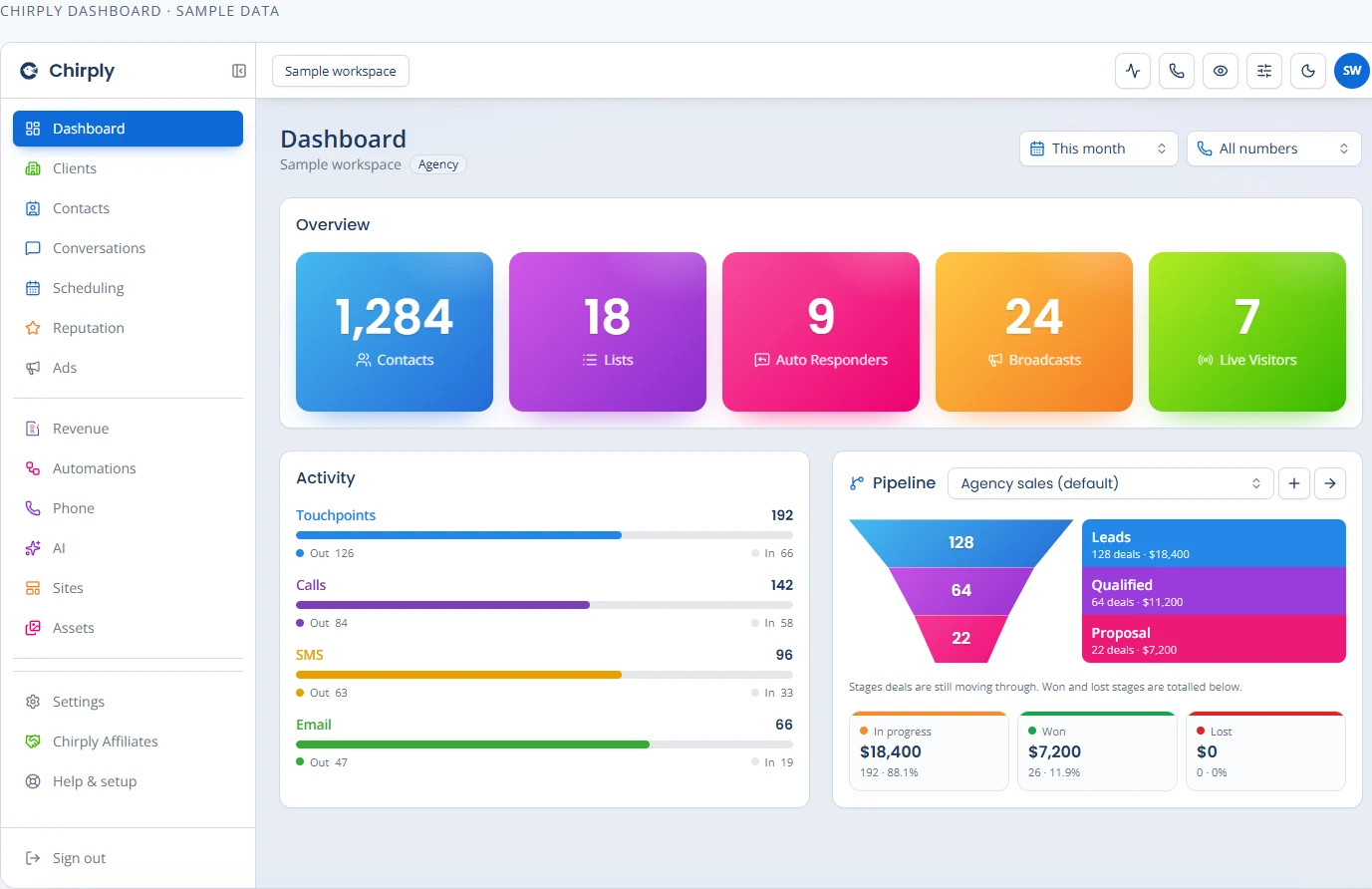
Creating custom dashboards for your white-label CRM clients lets them see their most important business data at a glance. This guide will walk you through how to configure and personalize these dashboards, making your CRM more valuable to each client.
Configure a useful client dashboard in Chirply
Start with the decision the client needs to make. For a sales manager, that might be which open deals need attention today. For an operator, it might be whether calls and messages are being handled. More widgets do not automatically make either decision easier.
- Switch into the correct client workspace and open Dashboard. Check the date range and phone-number filters before interpreting activity.
- On a wide enough canvas, enter Customize. Reorder cards by their handles, change a widget's supported size and hide widgets the viewer does not need. Changes save as that user's view; Done leaves customization mode rather than saving a shared layout for everyone.
- Keep the overview, activity and pipeline views if they answer the client's daily questions. The screenshot above uses the real dashboard components with sample records, so its counts and dollar values are illustrative.
- Check the narrower browser layout as well. A saved card width can display differently when the available canvas is smaller; the layout adapts instead of rewriting the saved preference.
- Reconcile one visible number with its underlying contacts or deals. Use the same time period and filters on both sides of the check. A pipeline's open deal value is not the same measure as collected cash.
Ask the client to point to the next action they would take after reading the dashboard. If they cannot, simplify the view or add the missing context. Do not promise that one employee's customized layout is automatically every teammate's default.
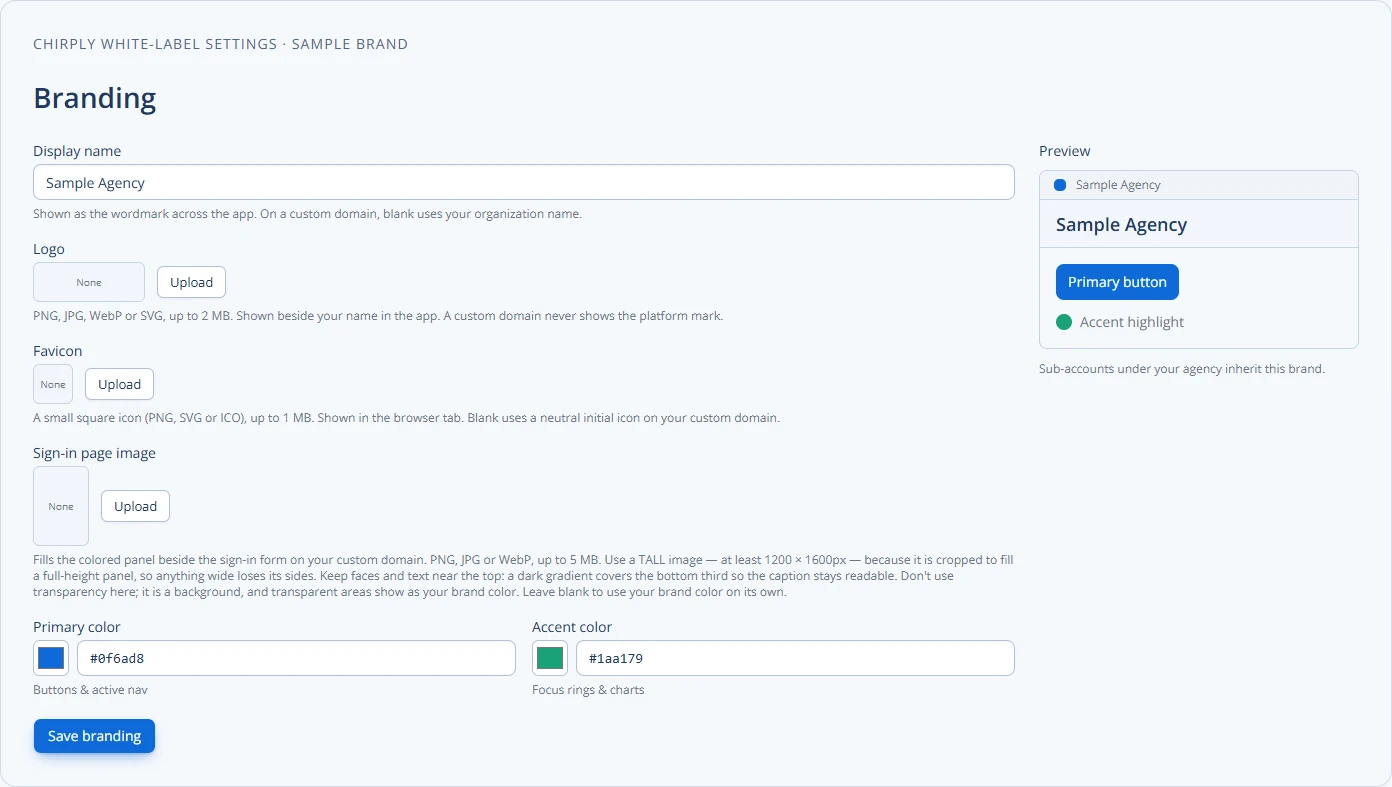
Explore the connected CRM and Chirply's agency branding, then build a dashboard around one recurring client decision before expanding it.
Why Custom Dashboards Matter for Your Clients
Imagine your clients log into a system and immediately see what's most important to them. That's the power of custom dashboards. Instead of sifting through all their data, they see key numbers and trends right away.
This helps them understand their business better. They can quickly check sales progress, see how many appointments they have, or track their marketing efforts. When clients see how useful your CRM is, they are more likely to keep using it and stay with your agency. It makes your white-label solution feel truly theirs.
Planning Your Client Dashboards
Before you start building, think about what each client needs. Every business is different, so their dashboards should be too.
First, talk to your clients. Ask them:
- What numbers are most important to their business?
- What problems are they trying to solve?
- What data do they look at every day or every week?
For example, a client focused on sales might want to see new leads, current sales pipeline value, and conversion rates. A client focused on appointments might need to see upcoming bookings and cancellation rates.
Next, consider the different types of data available in your CRM. This could include:
- Contact records (new leads, total contacts)
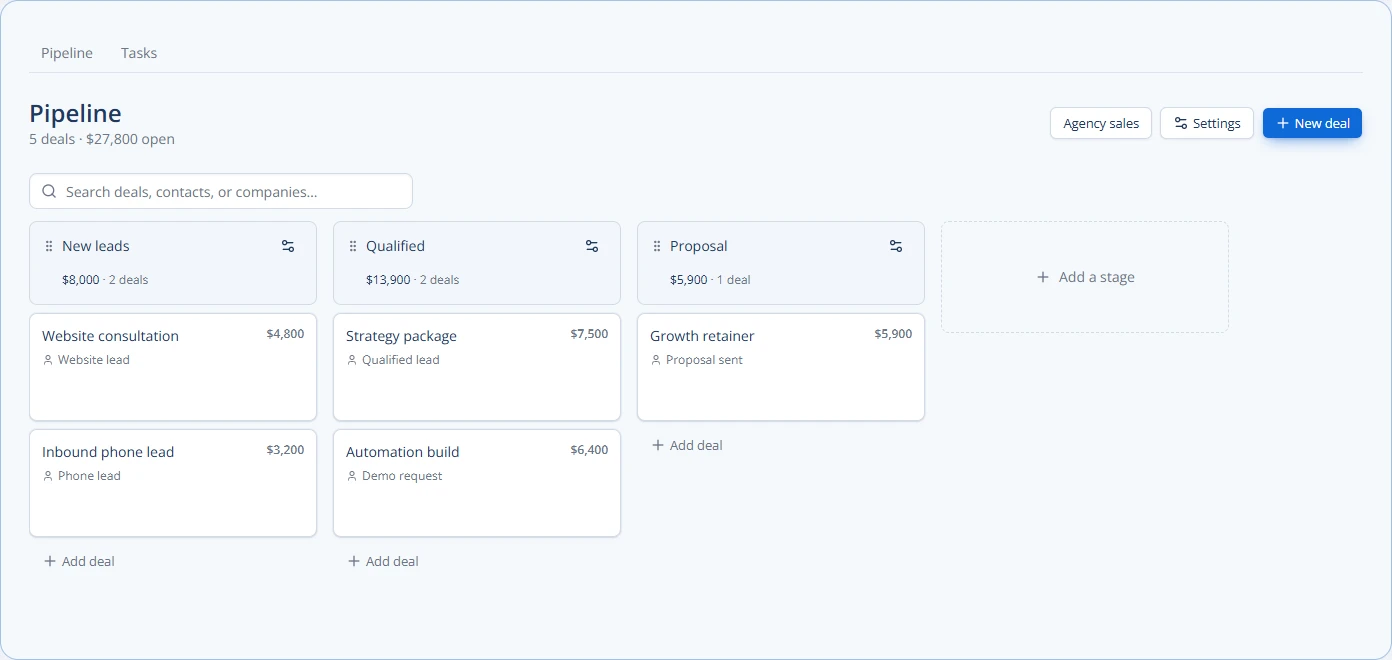
- Sales pipelines (deals won, deals lost, current value)
- Tasks and appointments (upcoming tasks, completed appointments)
- Communication (calls made, emails sent, SMS messages)
- Marketing (broadcast results, funnel performance)
- Invoicing (paid invoices, outstanding balances)
List out the specific metrics and reports that would be most useful for each client or type of client. This planning step makes the building process much smoother.
Configuring Dashboards in Your White-Label CRM
Most white-label CRMs offer tools to build custom dashboards. You'll typically find a "dashboard editor" or "analytics" section.
Here's a general approach:
- Access the Dashboard Editor: Log into your white-label CRM and navigate to the dashboard creation area. This might be under a "Reports," "Analytics," or "Dashboards" menu.
- Create a New Dashboard: Start with a blank canvas for your client. Give it a clear name, like "Client X Sales Overview."
- Add Widgets/Components: Dashboards are built using "widgets" or "components." These are small blocks that display specific data. Common widgets include:
- Number Widgets: Show a single key metric, like "New Leads This Month."
- List Widgets: Display a list of items, like "Upcoming Appointments."
- Chart Widgets: Visualize data with bar charts, pie charts, or line graphs for trends, such as "Sales Pipeline Value by Stage."
- Table Widgets: Present detailed data in a table format, like "Recent Closed Deals."
- Select Data Sources: For each widget, you'll choose what data it should pull from. For example, a "New Leads" widget would pull from your CRM's contact records, filtering for contacts created in the last 30 days.
- Apply Filters: This is crucial for personalization. You need to make sure the data shown is only for that specific client. Use filters to narrow down the data by:
- Client Workspace: If your CRM uses separate client workspaces, this is often the easiest way to ensure data separation.
- Tags or Custom Fields: You might tag contacts or deals with a client's name and then filter by that tag.
- User Roles/Permissions: Ensure that only the client's team can see their specific dashboard and data. You can learn more about managing access by reading about setting up user roles and permissions in your branded CRM.
- Arrange and Layout: Drag and drop widgets to arrange them in a logical and easy-to-read way. Put the most important information at the top.
- Save and Share: Once you're happy with the dashboard, save it. Then, share it with your client or make it the default view when they log in.
Practical Example: Sales Overview Dashboard
Let's say you have a client, "Acme Solutions," who wants to track their sales performance.
Here's a possible dashboard setup:
| Widget Type | Data Displayed | Filters Applied |
|---|---|---|
| Number | Total New Leads (This Month) | Contact Source = "Acme Solutions" & Date Created = "This Month" |
| Number | Current Pipeline Value | Deal Owner = "Acme Solutions Team" & Status = "Open" |
| Chart (Bar) | Deals Won vs. Lost (Last 90 Days) | Deal Owner = "Acme Solutions Team" & Date Closed = "Last 90 Days" |
| List | Upcoming Appointments (Next 7 Days) | Appointment Owner = "Acme Solutions Team" & Date = "Next 7 Days" |
| Table | Recent Opportunities (Last 30 Days) | Deal Owner = "Acme Solutions Team" & Date Created = "Last 30 Days" |
This table shows how you can combine different widget types and filters to create a focused and personalized view for your client.
Iterating and Improving Dashboards
Custom dashboards aren't a "set it and forget it" task. As your clients' businesses change, their reporting needs might change too.
- Regular Check-ins: Periodically ask your clients if their dashboards are still useful. Are there new metrics they want to track? Is anything missing?
- Feedback Loop: Encourage clients to give you feedback. They are the ones using it daily, so their input is invaluable.
- Add New Features: As your white-label CRM evolves or as you add more services, update dashboards to reflect these new capabilities. For example, if you introduce new lead generation tools, add widgets to track their performance.
- Train Your Clients: Show your clients how to read and use their dashboards effectively. Explain what each number means and how they can use the information to make better decisions. This also helps with client retention strategies with a branded SaaS offering.
Leveraging Advanced Features for Deeper Insights
Many white-label CRMs offer advanced features that can take your custom dashboards to the next level.
- Goal Tracking: Allow clients to set specific goals (e.g., "100 new leads per month") and display their progress directly on the dashboard.
- Custom Reports: Beyond simple widgets, some systems let you embed more complex custom reports directly into a dashboard. This is great for showing detailed analysis.
- Automation Integration: If your CRM has automation capabilities, you could show how many automations ran or how many tasks were completed automatically. This can highlight the efficiency your agency provides.
- AI Insights: Some advanced platforms, like Chirply, expose human actions and data through APIs and AI tools. This means you might be able to integrate AI-driven insights directly into dashboards, offering predictive analytics or performance summaries.
- Third-Party Integrations: If your CRM integrates with other tools your clients use (e.g., accounting software, marketing platforms), you might be able to pull data from those sources into the dashboard for a more complete picture.
When building dashboards, remember that the goal is to make data accessible and actionable. A good dashboard doesn't just show numbers; it tells a story about the client's business performance. With a robust platform like Chirply, you have the flexibility to create highly personalized and powerful dashboards for each of your agency's clients.
By following these steps, you can create custom dashboards that not only meet your clients' needs but also enhance the value of your white-label CRM solution.
To improve your client dashboards, start by reviewing one client's current dashboard with them. Discuss what's working well and what additional insights they'd find most valuable.
Common questions
Answers at a glance
What is a custom dashboard in a white-label CRM?
A custom dashboard is a personalized screen within your white-label CRM that displays specific data points, reports, and metrics tailored to an individual client's business needs. It allows clients to see their most important information at a glance, filtered to show only their relevant data.
Why are custom dashboards important for my white-label CRM clients?
Custom dashboards help your clients quickly understand their business performance without sifting through all available data. This personalization makes your CRM more valuable, improves client satisfaction, and helps with client retention by showing them how your solution directly benefits their operations.
What kind of data can I display on a custom client dashboard?
You can display various types of data, including new leads, sales pipeline value, conversion rates, upcoming appointments, task completion, email and SMS campaign performance, funnel results, and invoicing status. The specific data depends on what your client needs to track and what your CRM can provide.
How do I ensure a client's dashboard only shows their data?
You ensure data separation by using filters within the dashboard configuration. This often involves filtering by client workspace, specific tags, custom fields associated with the client, or user roles and permissions that limit data visibility to their team only.
Should I update client dashboards after setting them up?
Yes, it's important to regularly review and update client dashboards. As client businesses evolve or new features are added to your CRM, their reporting needs may change. Regular check-ins and feedback loops ensure the dashboards remain relevant and valuable over time.
Put this into practice
Use a setup guide and its acceptance checks to turn the idea into a working process.
- CRM Evaluation Checklist & Weighted Scorecard Template
- White-Label CRM Launch Checklist for Agencies
- Client Onboarding Checklist: Owners, Access & Handoff
Put the system to work
Try the workflow in your own account.
Review the feature, choose one sample contact and test the handoff before you expand it to the rest of your team.
Explore this Chirply feature See Chirply plans